
Overview

Faces supports real-time collaboration. Multiple people can edit the same project simultaneously, and changes sync instantly across all editors.

How it works

When you and your collaborators open the same project:
  • Presence indicators: see who’s currently viewing each slide
  • Instant sync: content and control changes appear immediately for everyone
  • AI generations: when someone uses the chat to generate or edit a slide, everyone sees the progress live

Adding collaborators

  1. Open your project
  2. Click the green Share button in the top bar
  3. Open the Collaborate tab
  4. Enter an email address and click Share
  5. Adjust their access (Can view or Can edit) from the dropdown next to their name
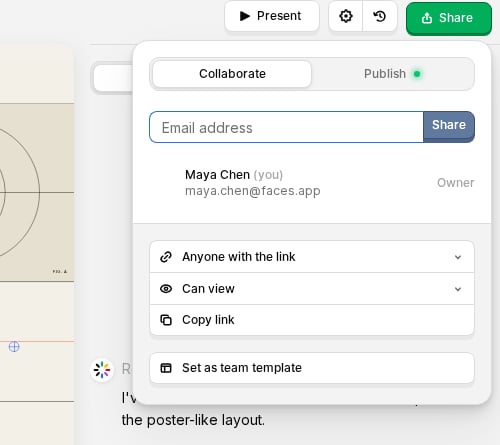
The Collaborate tab also lets you copy a link to the project in the editor (for people who already have access) and set whether the project is visible to only invited people, everyone on your team, or anyone with the link.
Collaborate tab with an invite field, owner, link access, permission, and copy link controls

Permission levels

New collaborators start as Can view. Switch any collaborator to Can edit from the dropdown next to their name; no workspace seat is required.
RoleCan viewCan editCan invite & manage
Can viewYesNoNo
Can editYesYesNo
OwnerYesYesYes
Collaborators can edit in the editor. To control who can view the published URL, see Access Control.

Workspace members vs. per-project guests

There are two ways someone can collaborate on your projects: as a workspace member or as a per-project guest. The key difference is that workspace members hold a paid seat on your team and can access every team-shared project, while per-project guests are invited to a single project.

Workspace members

Workspace members have a seat in your team and are billed as part of your subscription. They can access all team-shared projects and collaborate with full editing permissions.
PlanWorkspace members
Basic (Free)1
PlusUp to 5 (billed per seat)
ProUp to 200 (billed per seat)

Per-project guests

When you invite someone who is not a workspace member, they are added as a per-project guest with access to just that project. Guests start as Can view, but you can switch any guest to Can edit from the dropdown next to their name; no seat required.
PlanPer-project guests
Basic (Free)Up to 3
PlusUp to 10
ProUnlimited