
Overview
Controls let you adjust the visual behavior of each slide: animation speed, element sizes, colors, and toggle effects. Select a slide and open the Design tab in the right sidebar; your controls appear there under the Others section. Controls are fully generative. The AI creates them based on your slide’s design, and you can ask for new controls through the chat. Want a slider for spacing between cards, a toggle to show captions, or a selector for animation direction? Just ask and the AI will add it.Adjusting controls does not consume credits.
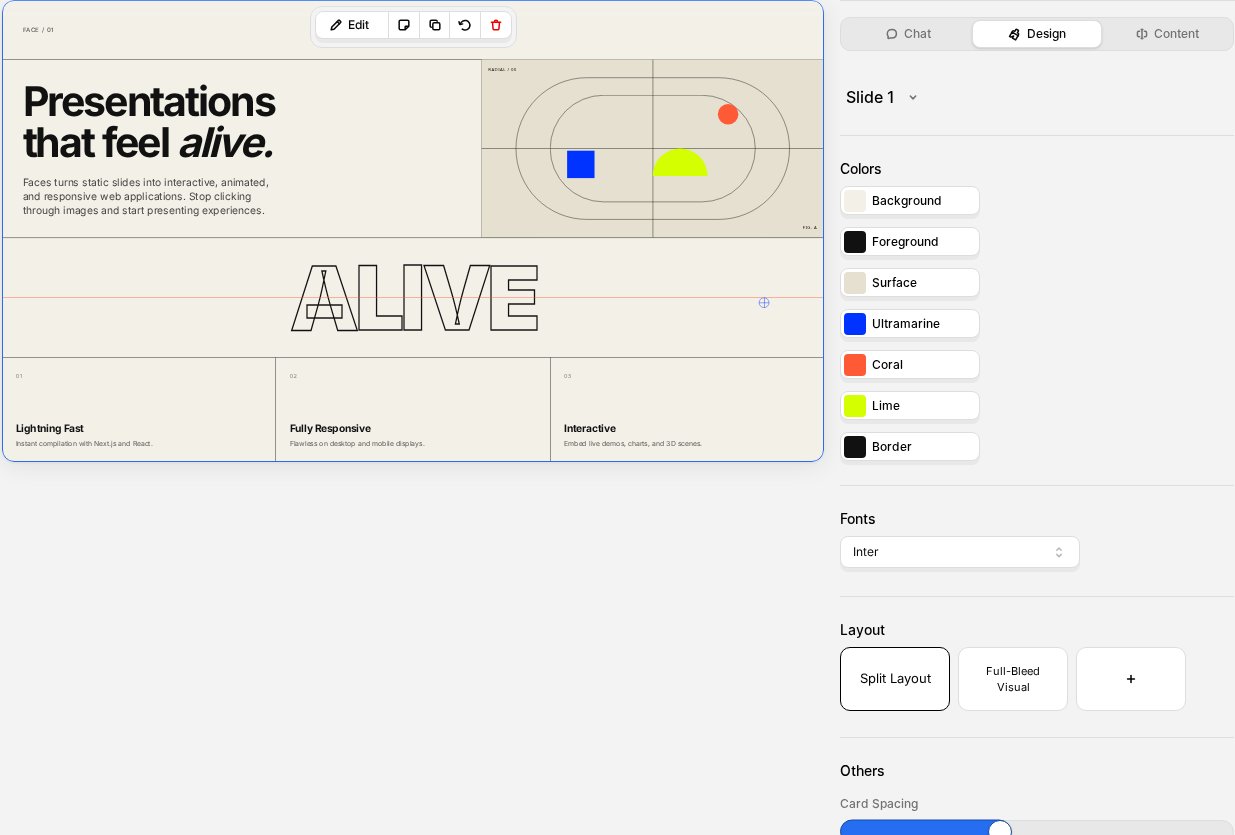
Control types
Sliders
Numeric controls with a minimum, maximum, and step value. Use them to adjust things like:- Animation duration or speed
- Element sizes and spacing
- Opacity or blur values
Switches
Simple on/off toggles. Use them to enable or disable visual features like:- Show or hide an element
- Enable or disable an animation
- Toggle a visual effect
Selectors
Dropdown menus that let you pick from a set of options, such as:- Animation style (fade, slide, zoom)
- Color theme variant
- Layout alignment
How to use controls
- Open your project in the editor
- Select a slide from the left sidebar
- Open the Design tab in the right sidebar; your controls appear under the Others section
- Adjust any control; the preview updates in real time
- Changes are saved automatically