
Overview
The dashboard is your home base. It shows all your projects, gives you quick access to shared work, and lets you create new projects.Projects view
Your projects appear as a grid of thumbnail cards showing:- A screenshot preview of the project
- The project name
- When it was last modified
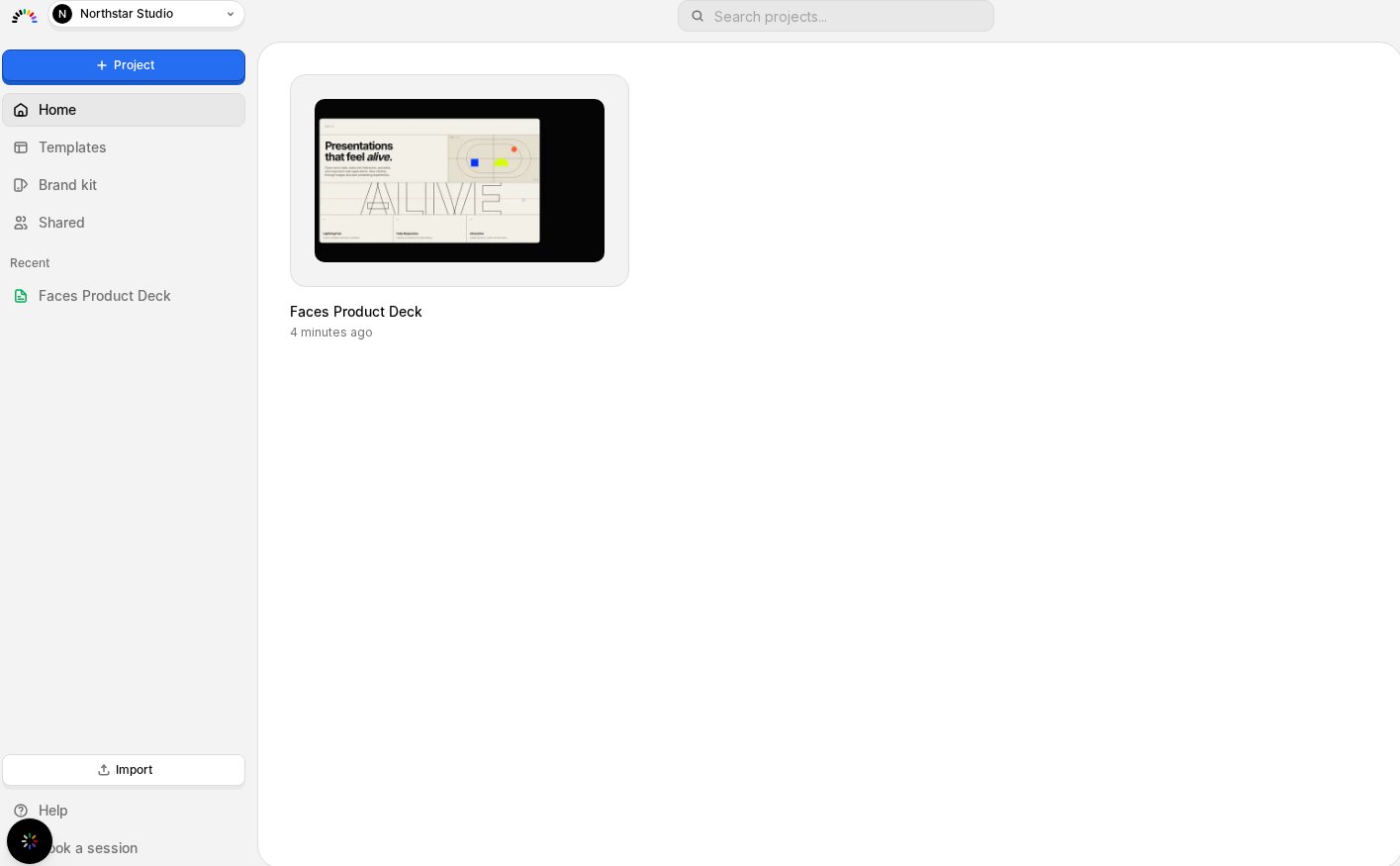
Browsing your projects
Switch between views from the left sidebar:- Home / My Projects: all projects you own or have edit access to
- Shared with me: projects others have shared with you
- Templates: reusable starting points, filterable by All, Team, or Community
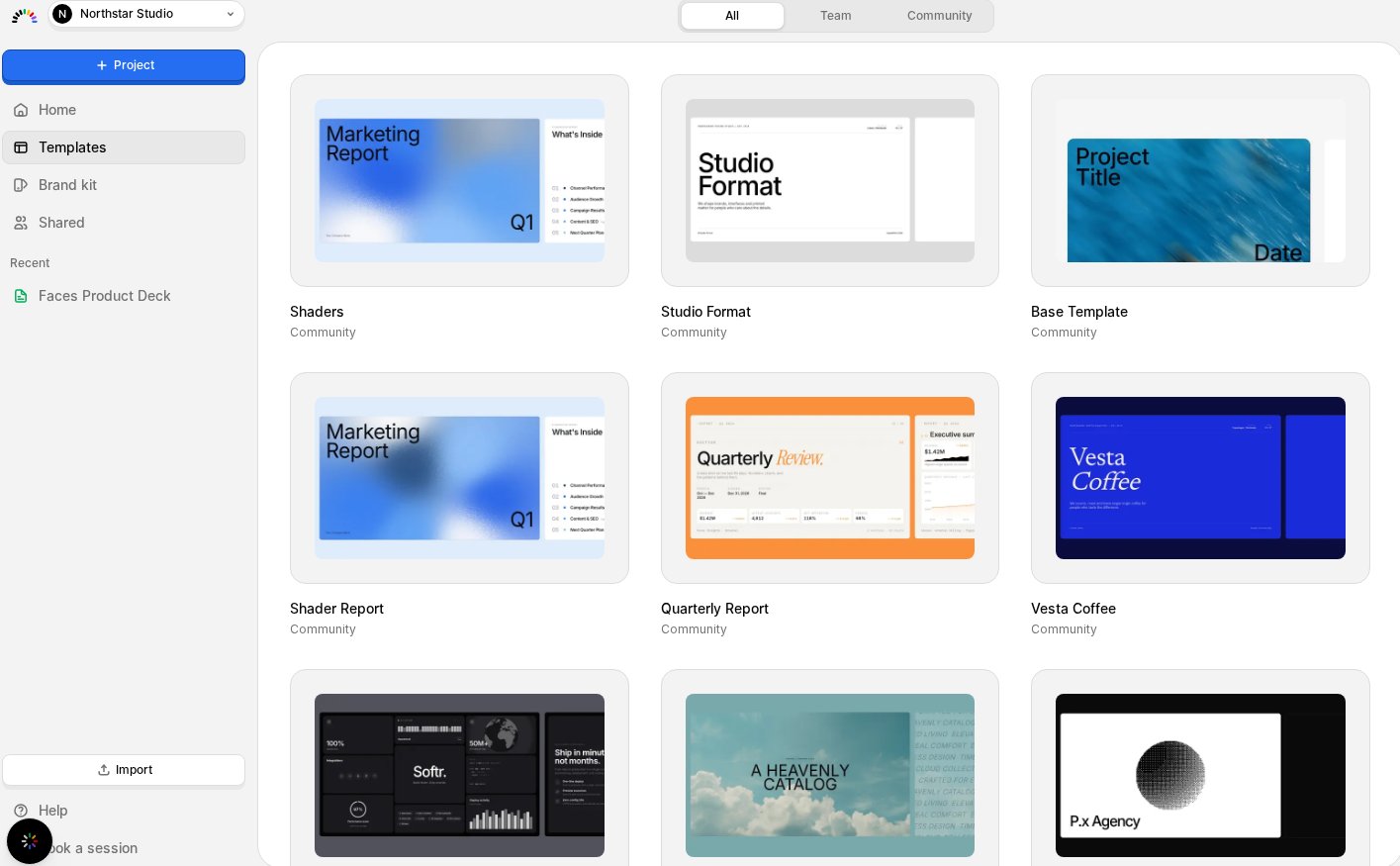
Search
Use the search bar at the top to filter projects by name. Results update as you type.Left sidebar
The sidebar provides quick navigation:- New Project: start a new project from scratch or a prompt
- Home: return to the dashboard
- Templates: browse reusable starting points
- Shared with me: projects others have shared with you
- Recent projects: quickly jump back to projects you’ve worked on recently
- Import: bring in an existing file to start from
- Help: links to the community, documentation, blog, feedback, and live chat support
- Book a tour: schedule a walkthrough with the team
Creating a new project
- Click New Project in the sidebar (or the dashboard)
- Describe what you want: topic, number of slides, style preferences
- Faces generates a fully styled, interactive presentation with content, animations, and design
- Edit and refine in the editor
Settings
Click your avatar and choose Settings to access:- Workspace settings: manage team members, workspace name
- Billing: view and manage your subscription, see credit usage
- Account: update your profile and security settings