
Overview
Faces offers two layouts for your project, and you can switch between them at any time from the editor: same content, different format.Slideshow layout
Works like a traditional presentation. Viewers navigate one slide at a time using arrows or swipe gestures. Best for:- Guided narratives where you control the pacing
- Pitch decks and keynotes
- Step-by-step walkthroughs
Scroll layout
Turns your presentation into a scrollable, single-page experience. Each slide flows into the next like a web article or landing page. Best for:- Landing pages and marketing sites
- Documentation and reports
- Content meant to be skimmed or scanned
Switching layouts
Open the Settings panel (the settings icon in the top bar) and choose Slideshow or Scroll under Layout. You can change layouts as often as you want; your content stays the same, only the navigation changes. For the Scroll layout you can also set the Orientation (vertical or horizontal). When Display is set to Cards, you can additionally adjust the card Size.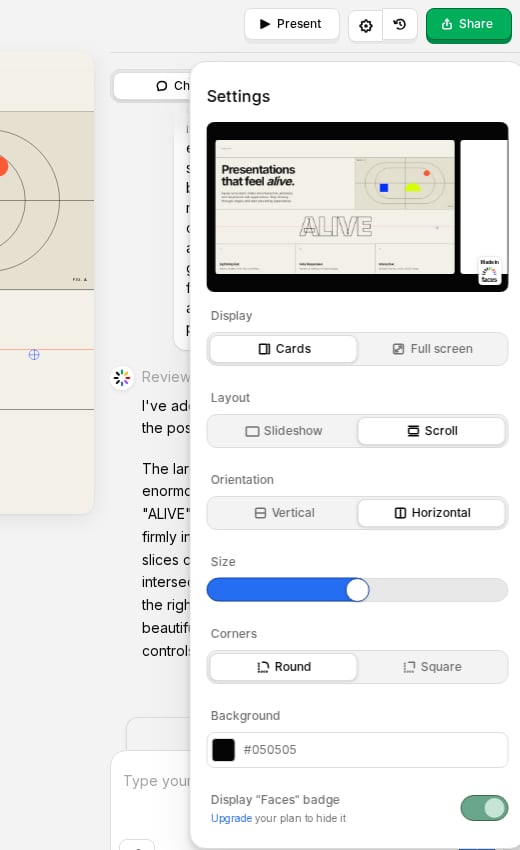
Other display settings
In the same Settings panel you can fine-tune how slides are framed, for both layouts:- Display: show each slide as a Card or Full screen.
- Corners: Round or Square card corners (when Display is set to Cards).
- Background: a solid color or an uploaded image shown behind your cards.