> ## Documentation Index
> Fetch the complete documentation index at: https://faces.app/docs/llms.txt
> Use this file to discover all available pages before exploring further.
# MCP Setup
> Connect the Faces MCP server to Claude or other MCP clients to generate interactive presentations.
## Claude.ai
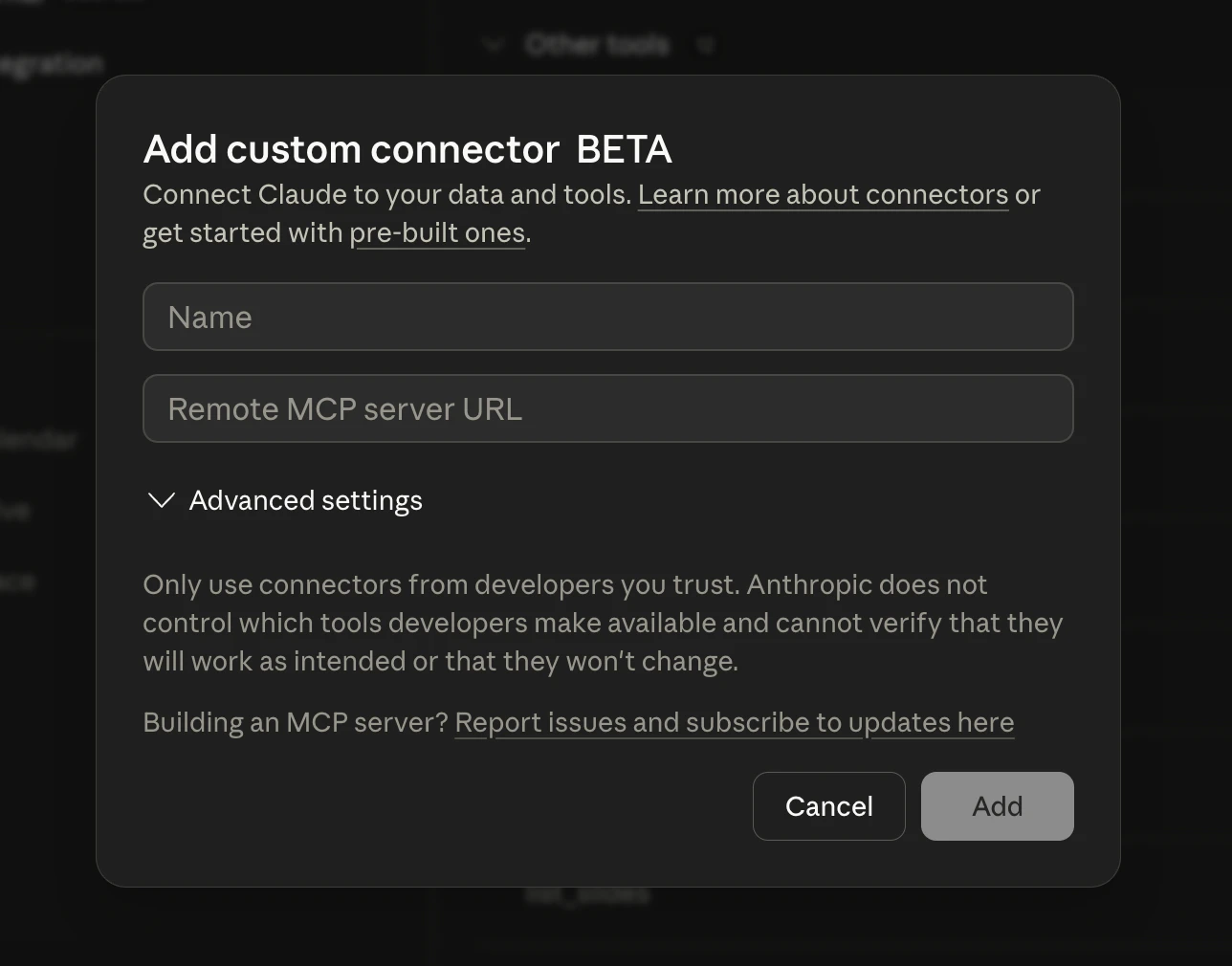
1. Open [claude.ai/customize/connectors?modal=add-custom-connector](https://claude.ai/customize/connectors?modal=add-custom-connector). The **Add custom connector** dialog will appear:
 2. Fill in the fields:
* **Name:** `Faces`
* **Remote MCP server URL:** `https://mcp.faces.app/mcp`
2. Fill in the fields:
* **Name:** `Faces`
* **Remote MCP server URL:** `https://mcp.faces.app/mcp`
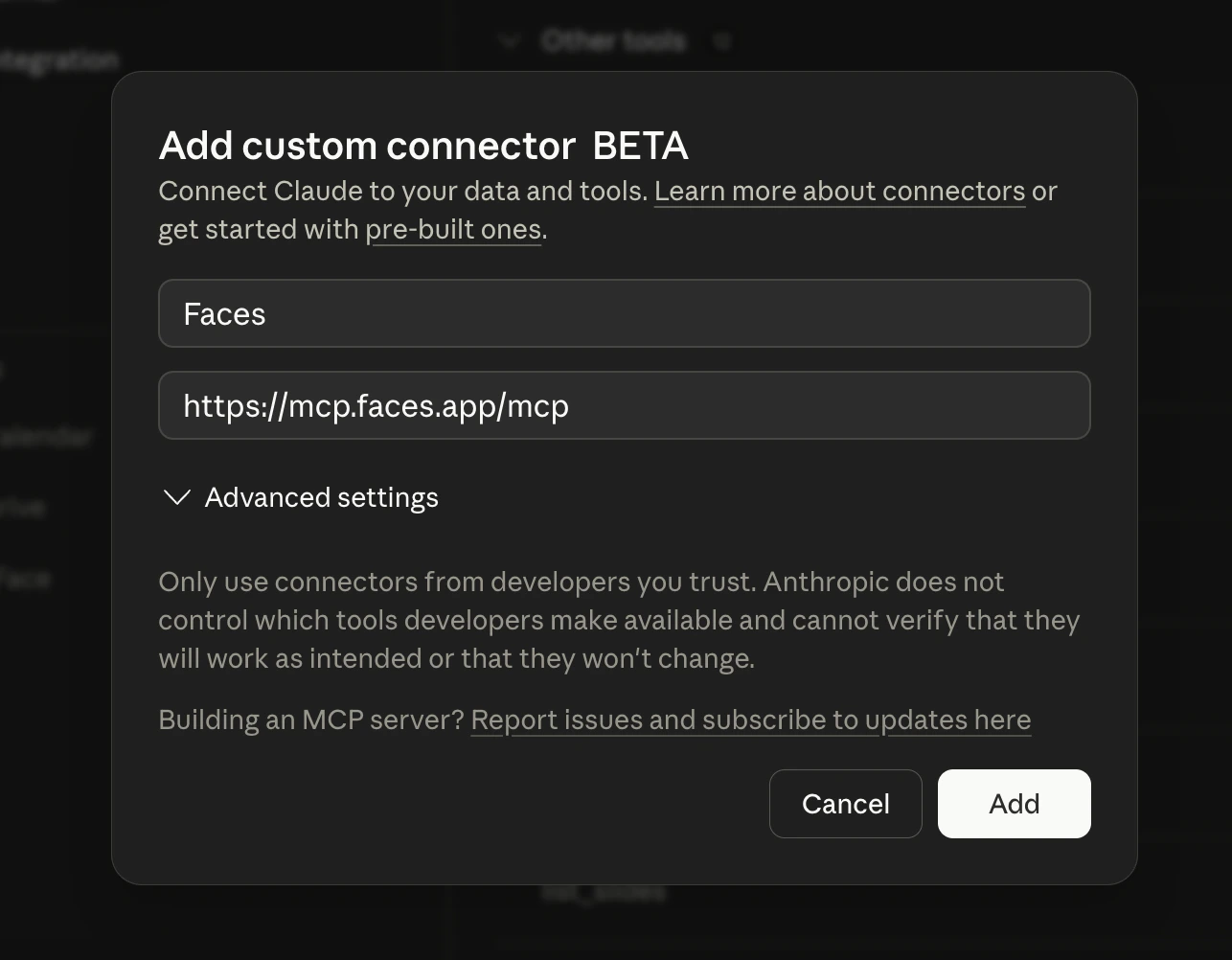 3. Click **Add**, then authenticate with your Faces account through the browser. That's it, you're ready to go.
The MCP server uses OAuth with a dynamic OAuth client, so the same URL works
in any MCP-compatible client, including Claude (Chat, Cowork, Code), ChatGPT,
Codex, and more. No API key needed.
## Claude Code
Add the Faces MCP server to Claude Code:
```bash theme={null}
claude mcp add faces --transport http https://mcp.faces.app/mcp
```
## Other MCP clients
Any MCP-compatible client can connect to the Faces server. Use:
* **HTTP endpoint:** `https://mcp.faces.app/mcp`
* **Auth:** OAuth 2.0 with dynamic client registration (authorization server metadata at `https://mcp.faces.app/.well-known/oauth-authorization-server`)
## Verify the connection
After connecting, ask Claude:
> List my Faces projects
Claude should use the `list_projects` tool and show your projects. If you see an authentication error, try disconnecting and reconnecting to re-trigger the OAuth flow.
## Troubleshooting
### "No authenticated user" error
The OAuth token may have expired. Disconnect the MCP server in your client and reconnect to trigger a fresh authentication.
### Tools not appearing
Make sure you're using a client that supports MCP tool discovery. Restart the client after adding the server configuration.
### Rate limits
The MCP server shares the same **50 requests per minute** limit as the REST API. If Claude is making many rapid requests, it may hit this limit.
3. Click **Add**, then authenticate with your Faces account through the browser. That's it, you're ready to go.
The MCP server uses OAuth with a dynamic OAuth client, so the same URL works
in any MCP-compatible client, including Claude (Chat, Cowork, Code), ChatGPT,
Codex, and more. No API key needed.
## Claude Code
Add the Faces MCP server to Claude Code:
```bash theme={null}
claude mcp add faces --transport http https://mcp.faces.app/mcp
```
## Other MCP clients
Any MCP-compatible client can connect to the Faces server. Use:
* **HTTP endpoint:** `https://mcp.faces.app/mcp`
* **Auth:** OAuth 2.0 with dynamic client registration (authorization server metadata at `https://mcp.faces.app/.well-known/oauth-authorization-server`)
## Verify the connection
After connecting, ask Claude:
> List my Faces projects
Claude should use the `list_projects` tool and show your projects. If you see an authentication error, try disconnecting and reconnecting to re-trigger the OAuth flow.
## Troubleshooting
### "No authenticated user" error
The OAuth token may have expired. Disconnect the MCP server in your client and reconnect to trigger a fresh authentication.
### Tools not appearing
Make sure you're using a client that supports MCP tool discovery. Restart the client after adding the server configuration.
### Rate limits
The MCP server shares the same **50 requests per minute** limit as the REST API. If Claude is making many rapid requests, it may hit this limit.