> ## Documentation Index
> Fetch the complete documentation index at: https://faces.app/docs/llms.txt
> Use this file to discover all available pages before exploring further.
# Publishing
> Publish your project and share it with anyone.
## Overview
When you publish a project, it goes live on the web. Viewers can navigate your slides, interact with animations, and experience the full presentation in their browser.
Publishing and collaboration are grouped under a single **Share** button in the editor top bar.
## The Share popover
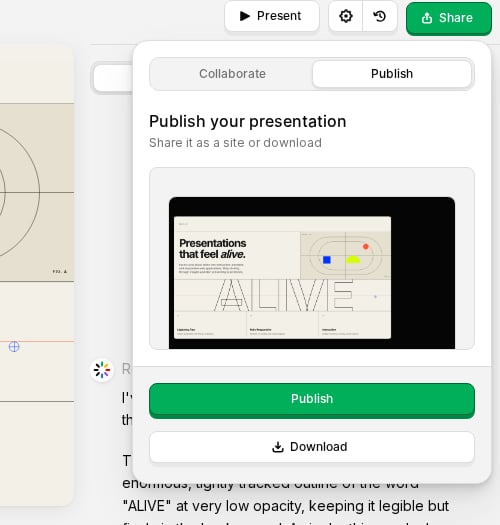
Click the green **Share** button to open a popover with two tabs:
| Tab | Purpose |
| --------------- | ------------------------------------------------------------------------------------------- |
| **Collaborate** | Invite people to edit, manage editor access, and copy the project link |
| **Publish** | Publish to the web, manage the live URL, update the published version, and download exports |
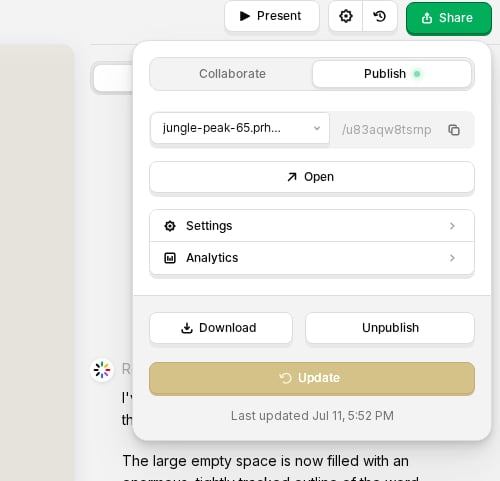
 When a project is published, the **Publish** tab shows a small status dot:
* **Green**: the live version matches your latest edits
* **Yellow**: you have unpublished changes; click **Update** to push them live
## How to publish
1. Open your project in the editor
2. Click **Share** in the top bar
3. Open the **Publish** tab
4. Click **Publish**
Your project goes live instantly. You get a shareable link (for example, `yourproject.faces.site`). You can also connect a [custom domain](/en/guides/custom-domains).
## Updating
After you make changes in the editor, open **Share → Publish** and click **Update** to push the latest version live. There is no separate deploy step.
## Unpublishing
To take your project offline:
1. Open the project in the editor
2. Click **Share → Publish**
3. Click **Unpublish**
The link stops working and the project returns to draft state.
## Publish tab features
Once published, the **Publish** tab includes:
* **URL editor**: choose a hostname, edit the path, copy the link, or open the live site
* **Open**: open the published project in a new tab
* **Settings**: [access control](/en/guides/access-control), social link preview, and [SEO discoverability](/en/guides/seo)
* **Analytics**: view traffic for the published project
* **Download**: export as [PDF or PowerPoint](/en/guides/pdf-export) (paid plans)
* **Update** / **Unpublish**: push changes live or take the project offline
When a project is published, the **Publish** tab shows a small status dot:
* **Green**: the live version matches your latest edits
* **Yellow**: you have unpublished changes; click **Update** to push them live
## How to publish
1. Open your project in the editor
2. Click **Share** in the top bar
3. Open the **Publish** tab
4. Click **Publish**
Your project goes live instantly. You get a shareable link (for example, `yourproject.faces.site`). You can also connect a [custom domain](/en/guides/custom-domains).
## Updating
After you make changes in the editor, open **Share → Publish** and click **Update** to push the latest version live. There is no separate deploy step.
## Unpublishing
To take your project offline:
1. Open the project in the editor
2. Click **Share → Publish**
3. Click **Unpublish**
The link stops working and the project returns to draft state.
## Publish tab features
Once published, the **Publish** tab includes:
* **URL editor**: choose a hostname, edit the path, copy the link, or open the live site
* **Open**: open the published project in a new tab
* **Settings**: [access control](/en/guides/access-control), social link preview, and [SEO discoverability](/en/guides/seo)
* **Analytics**: view traffic for the published project
* **Download**: export as [PDF or PowerPoint](/en/guides/pdf-export) (paid plans)
* **Update** / **Unpublish**: push changes live or take the project offline
 ## Layouts
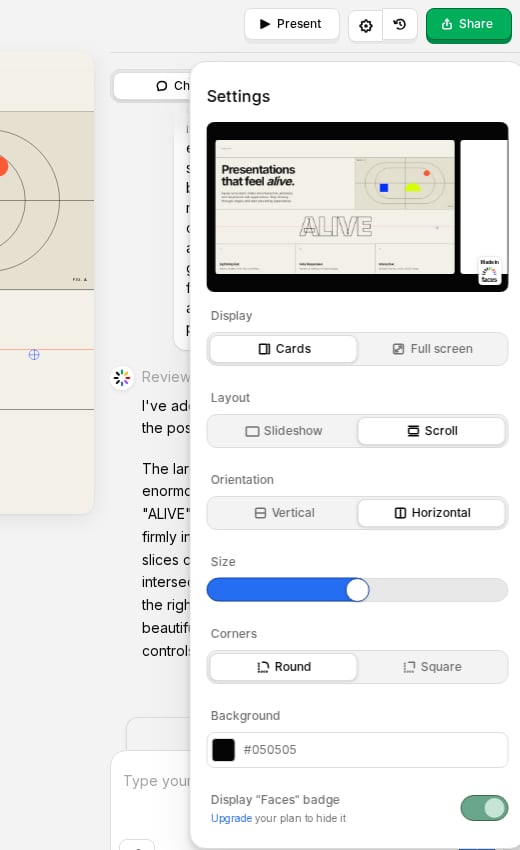
Choose how viewers experience your published project in the editor **settings** panel (gear icon in the top bar):
* **Slideshow**: viewers navigate one slide at a time with arrows or swipe gestures. Great for guided narratives where you control the pacing.
* **Scroll**: turns your presentation into a scrollable single-page experience, like a web article or landing page.
You can switch layouts at any time; same content, different format. [Learn more about layouts](/en/guides/layouts).
## Layouts
Choose how viewers experience your published project in the editor **settings** panel (gear icon in the top bar):
* **Slideshow**: viewers navigate one slide at a time with arrows or swipe gestures. Great for guided narratives where you control the pacing.
* **Scroll**: turns your presentation into a scrollable single-page experience, like a web article or landing page.
You can switch layouts at any time; same content, different format. [Learn more about layouts](/en/guides/layouts).
 ## The "Made in Faces" badge
Published projects display a small "Made in Faces" badge by default. On any **paid plan**, you can turn this off in the editor **Settings** panel under **Display "Faces" badge**.
## What happens when you publish
* Your latest version becomes the live version
* The project is accessible at its subdomain or custom domain
* Search engines can index it if you enable [discoverability](/en/guides/seo)
* [Access controls](/en/guides/access-control) determine who can view it
## The "Made in Faces" badge
Published projects display a small "Made in Faces" badge by default. On any **paid plan**, you can turn this off in the editor **Settings** panel under **Display "Faces" badge**.
## What happens when you publish
* Your latest version becomes the live version
* The project is accessible at its subdomain or custom domain
* Search engines can index it if you enable [discoverability](/en/guides/seo)
* [Access controls](/en/guides/access-control) determine who can view it