> ## Documentation Index
> Fetch the complete documentation index at: https://faces.app/docs/llms.txt
> Use this file to discover all available pages before exploring further.
# Multiplayer & Collaboration
> Work on projects together in real time with your team.
## Overview
Faces supports real-time collaboration. Multiple people can edit the same project simultaneously, and changes sync instantly across all editors.
## How it works
When you and your collaborators open the same project:
* **Presence indicators**: see who's currently viewing each slide
* **Instant sync**: content and control changes appear immediately for everyone
* **AI generations**: when someone uses the chat to generate or edit a slide, everyone sees the progress live
## Adding collaborators
1. Open your project
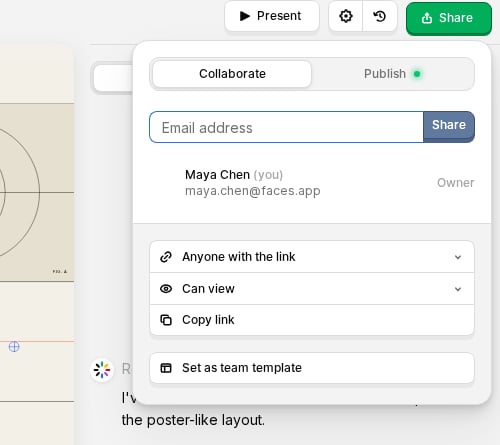
2. Click the green **Share** button in the top bar
3. Open the **Collaborate** tab
4. Enter an email address and click **Share**
5. Adjust their access (**Can view** or **Can edit**) from the dropdown next to their name
The **Collaborate** tab also lets you copy a link to the project in the editor (for people who already have access) and set whether the project is visible to **only invited people**, **everyone on your team**, or **anyone with the link**.
 ## Permission levels
New collaborators start as **Can view**. Switch any collaborator to **Can edit** from the dropdown next to their name; no workspace seat is required.
| Role | Can view | Can edit | Can invite & manage |
| ------------ | -------- | -------- | ------------------- |
| **Can view** | Yes | No | No |
| **Can edit** | Yes | Yes | No |
| **Owner** | Yes | Yes | Yes |
Collaborators can edit in the editor. To control who can **view** the published URL, see [Access Control](/en/guides/access-control).
## Workspace members vs. per-project guests
There are two ways someone can collaborate on your projects: as a **workspace member** or as a **per-project guest**. The key difference is that workspace members hold a paid seat on your team and can access every team-shared project, while per-project guests are invited to a single project.
### Workspace members
Workspace members have a seat in your team and are billed as part of your subscription. They can access all team-shared projects and collaborate with full editing permissions.
| Plan | Workspace members |
| ---------------- | --------------------------- |
| **Basic** (Free) | 1 |
| **Plus** | Up to 5 (billed per seat) |
| **Pro** | Up to 200 (billed per seat) |
### Per-project guests
When you invite someone who is **not** a workspace member, they are added as a per-project guest with access to just that project. Guests start as **Can view**, but you can switch any guest to **Can edit** from the dropdown next to their name; no seat required.
| Plan | Per-project guests |
| ---------------- | ------------------ |
| **Basic** (Free) | Up to 3 |
| **Plus** | Up to 10 |
| **Pro** | Unlimited |
## Permission levels
New collaborators start as **Can view**. Switch any collaborator to **Can edit** from the dropdown next to their name; no workspace seat is required.
| Role | Can view | Can edit | Can invite & manage |
| ------------ | -------- | -------- | ------------------- |
| **Can view** | Yes | No | No |
| **Can edit** | Yes | Yes | No |
| **Owner** | Yes | Yes | Yes |
Collaborators can edit in the editor. To control who can **view** the published URL, see [Access Control](/en/guides/access-control).
## Workspace members vs. per-project guests
There are two ways someone can collaborate on your projects: as a **workspace member** or as a **per-project guest**. The key difference is that workspace members hold a paid seat on your team and can access every team-shared project, while per-project guests are invited to a single project.
### Workspace members
Workspace members have a seat in your team and are billed as part of your subscription. They can access all team-shared projects and collaborate with full editing permissions.
| Plan | Workspace members |
| ---------------- | --------------------------- |
| **Basic** (Free) | 1 |
| **Plus** | Up to 5 (billed per seat) |
| **Pro** | Up to 200 (billed per seat) |
### Per-project guests
When you invite someone who is **not** a workspace member, they are added as a per-project guest with access to just that project. Guests start as **Can view**, but you can switch any guest to **Can edit** from the dropdown next to their name; no seat required.
| Plan | Per-project guests |
| ---------------- | ------------------ |
| **Basic** (Free) | Up to 3 |
| **Plus** | Up to 10 |
| **Pro** | Unlimited |