> ## Documentation Index
> Fetch the complete documentation index at: https://faces.app/docs/llms.txt
> Use this file to discover all available pages before exploring further.
# Layouts
> Choose between slideshow and scroll layouts for your published project.
## Overview
Faces offers two layouts for your project, and you can switch between them at any time from the editor: same content, different format.
## Slideshow layout
Works like a traditional presentation. Viewers navigate one slide at a time using arrows or swipe gestures.
**Best for:**
* Guided narratives where you control the pacing
* Pitch decks and keynotes
* Step-by-step walkthroughs
## Scroll layout
Turns your presentation into a scrollable, single-page experience. Each slide flows into the next like a web article or landing page.
**Best for:**
* Landing pages and marketing sites
* Documentation and reports
* Content meant to be skimmed or scanned
## Switching layouts
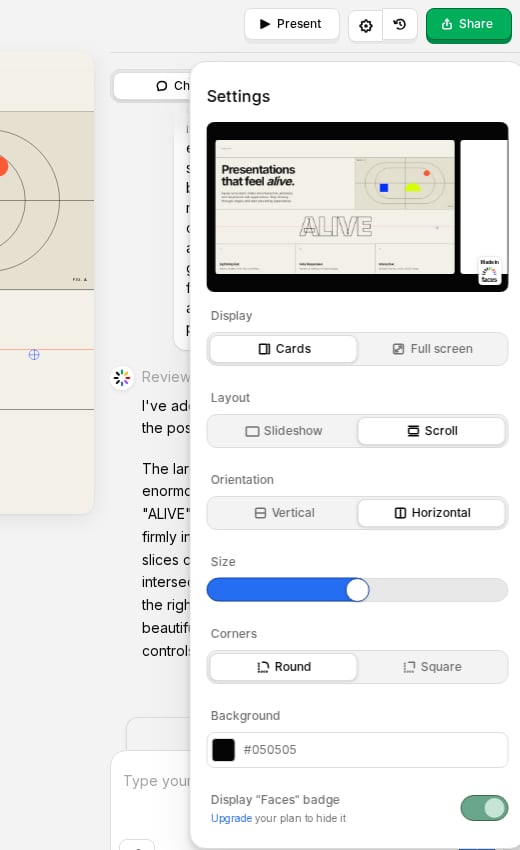
Open the **Settings** panel (the settings icon in the top bar) and choose **Slideshow** or **Scroll** under **Layout**. You can change layouts as often as you want; your content stays the same, only the navigation changes.
For the Scroll layout you can also set the **Orientation** (vertical or horizontal). When **Display** is set to **Cards**, you can additionally adjust the card **Size**.
 ## Other display settings
In the same **Settings** panel you can fine-tune how slides are framed, for both layouts:
* **Display**: show each slide as a **Card** or **Full screen**.
* **Corners**: **Round** or **Square** card corners (when Display is set to Cards).
* **Background**: a solid color or an uploaded image shown behind your cards.
You design once and switch between layouts anytime depending on the context.
## Other display settings
In the same **Settings** panel you can fine-tune how slides are framed, for both layouts:
* **Display**: show each slide as a **Card** or **Full screen**.
* **Corners**: **Round** or **Square** card corners (when Display is set to Cards).
* **Background**: a solid color or an uploaded image shown behind your cards.
You design once and switch between layouts anytime depending on the context.