> ## Documentation Index
> Fetch the complete documentation index at: https://faces.app/docs/llms.txt
> Use this file to discover all available pages before exploring further.
# The Dashboard
> Browse, search, and manage all your projects from the dashboard.
## Overview
The dashboard is your home base. It shows all your projects, gives you quick access to shared work, and lets you create new projects.
## Projects view
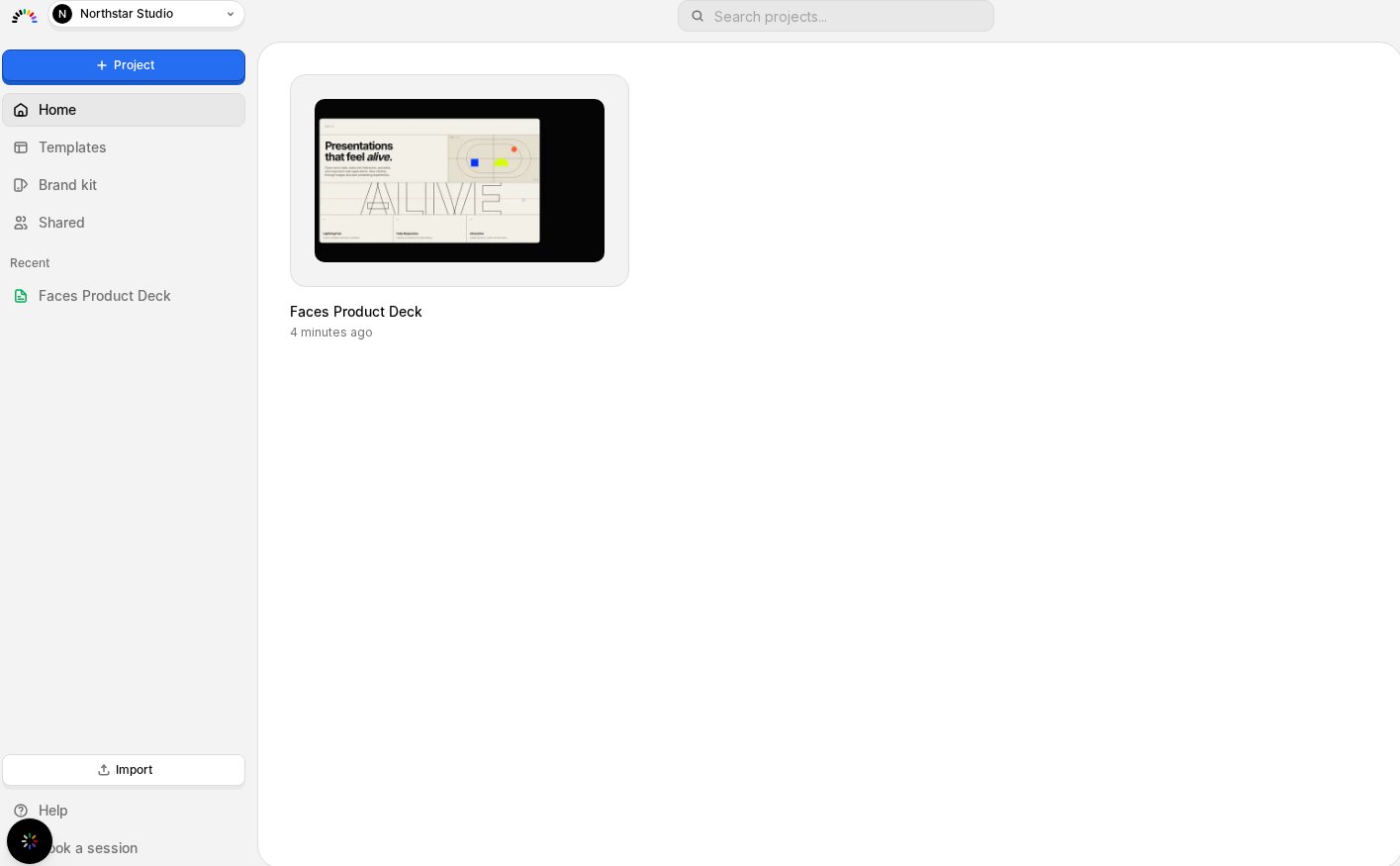
Your projects appear as a grid of thumbnail cards showing:
* A screenshot preview of the project
* The project name
* When it was last modified
Click any project to open it in the editor.
 ## Browsing your projects
Switch between views from the left sidebar:
* **Home / My Projects**: all projects you own or have edit access to
* **Shared with me**: projects others have shared with you
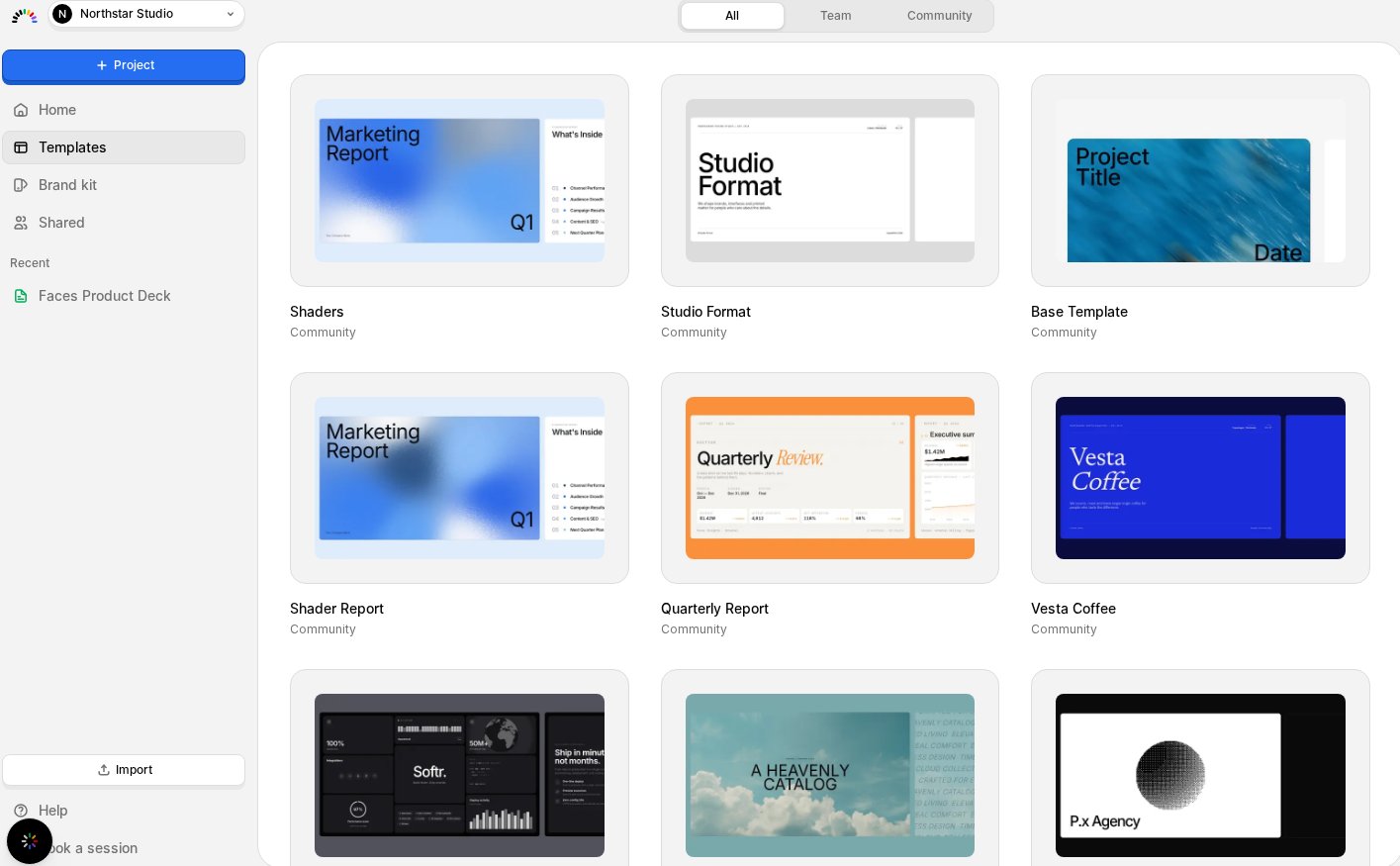
* **Templates**: reusable starting points, filterable by **All**, **Team**, or **Community**
## Browsing your projects
Switch between views from the left sidebar:
* **Home / My Projects**: all projects you own or have edit access to
* **Shared with me**: projects others have shared with you
* **Templates**: reusable starting points, filterable by **All**, **Team**, or **Community**
 ## Search
Use the search bar at the top to filter projects by name. Results update as you type.
## Left sidebar
The sidebar provides quick navigation:
* **New Project**: start a new project from scratch or a prompt
* **Home**: return to the dashboard
* **Templates**: browse reusable starting points
* **Shared with me**: projects others have shared with you
* **Recent projects**: quickly jump back to projects you've worked on recently
* **Import**: bring in an existing file to start from
* **Help**: links to the community, documentation, blog, feedback, and live chat support
* **Book a tour**: schedule a walkthrough with the team
Your account and workspace **Settings** are reached from your avatar / profile menu, not the sidebar.
## Creating a new project
1. Click **New Project** in the sidebar (or the dashboard)
2. Describe what you want: topic, number of slides, style preferences
3. Faces generates a fully styled, interactive presentation with content, animations, and design
4. Edit and refine in the editor
## Settings
Click your **avatar** and choose **Settings** to access:
* **Workspace settings**: manage team members, workspace name
* **Billing**: view and manage your subscription, see credit usage
* **Account**: update your profile and security settings
## Search
Use the search bar at the top to filter projects by name. Results update as you type.
## Left sidebar
The sidebar provides quick navigation:
* **New Project**: start a new project from scratch or a prompt
* **Home**: return to the dashboard
* **Templates**: browse reusable starting points
* **Shared with me**: projects others have shared with you
* **Recent projects**: quickly jump back to projects you've worked on recently
* **Import**: bring in an existing file to start from
* **Help**: links to the community, documentation, blog, feedback, and live chat support
* **Book a tour**: schedule a walkthrough with the team
Your account and workspace **Settings** are reached from your avatar / profile menu, not the sidebar.
## Creating a new project
1. Click **New Project** in the sidebar (or the dashboard)
2. Describe what you want: topic, number of slides, style preferences
3. Faces generates a fully styled, interactive presentation with content, animations, and design
4. Edit and refine in the editor
## Settings
Click your **avatar** and choose **Settings** to access:
* **Workspace settings**: manage team members, workspace name
* **Billing**: view and manage your subscription, see credit usage
* **Account**: update your profile and security settings