> ## Documentation Index
> Fetch the complete documentation index at: https://faces.app/docs/llms.txt
> Use this file to discover all available pages before exploring further.
# Editing Content
> Learn how to edit text, images, icons, and tables on your slides using the content editor.
## Overview
Every slide in your project is made up of **content blocks**: text, images, icons, and tables. You can edit any of them directly.
Editing content does **not** consume credits.
## Content block types
### Text blocks
Click any text on a slide to edit it inline. You can change headings, paragraphs, and any other text element. The rich text editor supports links and basic formatting.
### Image blocks
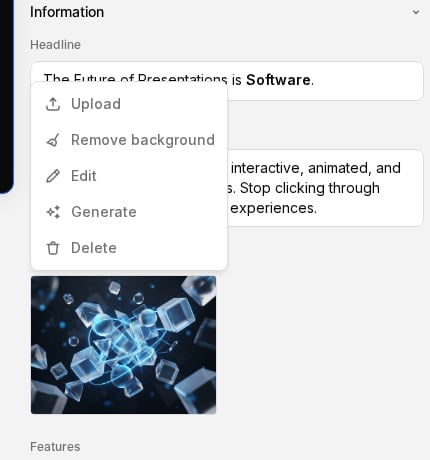
Click an image to open its options. You can:
* **Upload** a new image from your device
* **Generate** a new image using AI (with an optional reference image)
* **Edit** the existing image using AI
* **Remove background** with one click
* **Crop & rotate** the existing image manually
### Icon blocks
Click an icon to swap it for another one from the built-in icon library. Browse or search for the icon you need.
### Table blocks
Tables let you display structured data with typed columns:
* **Text**: plain text content
* **Image**: inline images
* **URL**: clickable links
* **Boolean**: yes/no toggles
* **Icon**: icons from the library
Add or remove rows as needed. Columns are defined when the table is first built. Ask the AI in the chat if you need to add, remove, or retype a column.
## How to edit content
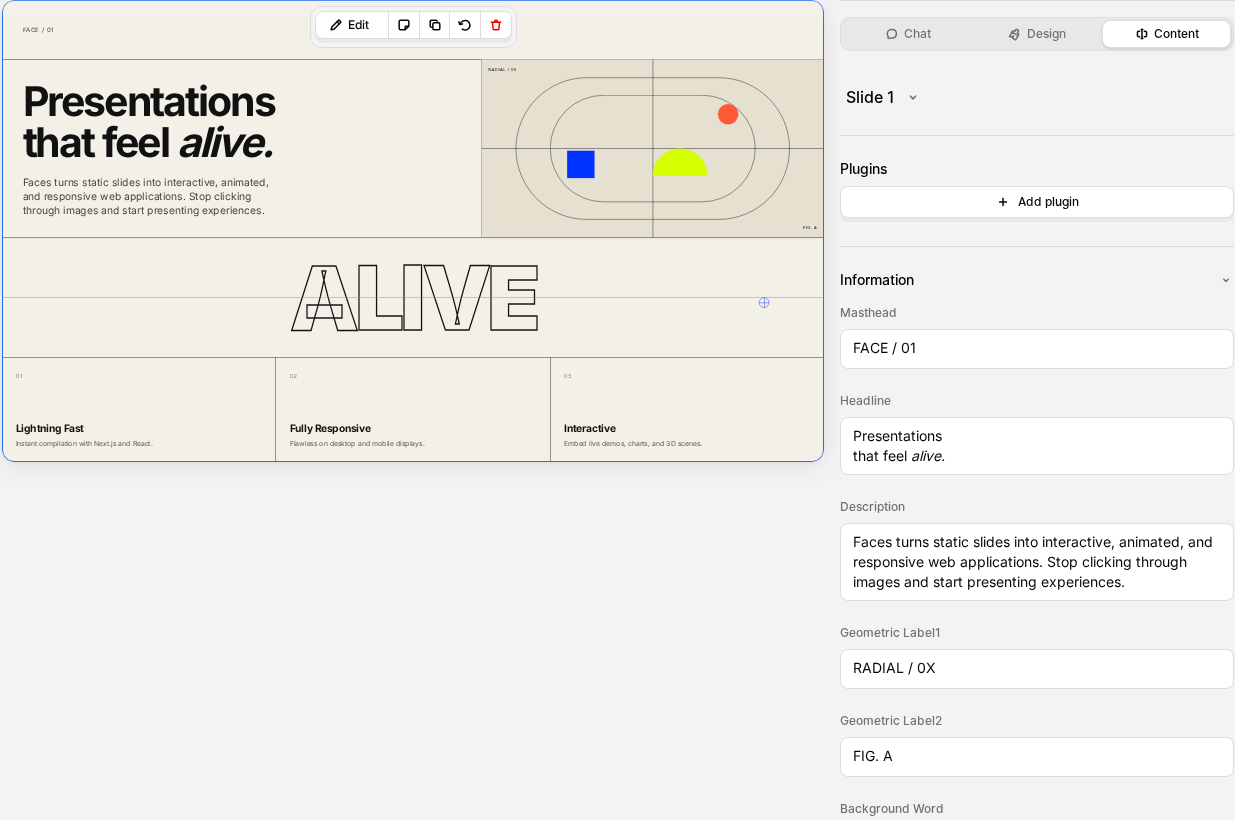
1. Open your project in the editor
2. Select a slide
3. Click the **Content** tab in the right panel
4. Changes are saved automatically and sync in real time with collaborators
## Tips
* Use the content editor for quick text fixes and image swaps; it's faster than asking the AI and doesn't consume credits.
* If you want the AI to redesign or restructure a slide, use the chat instead. That will consume a credit.
 ### Icon blocks
Click an icon to swap it for another one from the built-in icon library. Browse or search for the icon you need.
### Table blocks
Tables let you display structured data with typed columns:
* **Text**: plain text content
* **Image**: inline images
* **URL**: clickable links
* **Boolean**: yes/no toggles
* **Icon**: icons from the library
Add or remove rows as needed. Columns are defined when the table is first built. Ask the AI in the chat if you need to add, remove, or retype a column.
## How to edit content
1. Open your project in the editor
2. Select a slide
3. Click the **Content** tab in the right panel
4. Changes are saved automatically and sync in real time with collaborators
### Icon blocks
Click an icon to swap it for another one from the built-in icon library. Browse or search for the icon you need.
### Table blocks
Tables let you display structured data with typed columns:
* **Text**: plain text content
* **Image**: inline images
* **URL**: clickable links
* **Boolean**: yes/no toggles
* **Icon**: icons from the library
Add or remove rows as needed. Columns are defined when the table is first built. Ask the AI in the chat if you need to add, remove, or retype a column.
## How to edit content
1. Open your project in the editor
2. Select a slide
3. Click the **Content** tab in the right panel
4. Changes are saved automatically and sync in real time with collaborators
 ## Tips
* Use the content editor for quick text fixes and image swaps; it's faster than asking the AI and doesn't consume credits.
* If you want the AI to redesign or restructure a slide, use the chat instead. That will consume a credit.
## Tips
* Use the content editor for quick text fixes and image swaps; it's faster than asking the AI and doesn't consume credits.
* If you want the AI to redesign or restructure a slide, use the chat instead. That will consume a credit.