> ## Documentation Index
> Fetch the complete documentation index at: https://faces.app/docs/llms.txt
> Use this file to discover all available pages before exploring further.
# Authentication
> How to create and use API keys to authenticate with the Faces API.
All API requests require a **Bearer token** in the `Authorization` header. You authenticate using an API key that starts with `faces_`.
```bash theme={null}
curl https://faces.app/api/v1/projects \
-H "Authorization: Bearer faces_abc123..."
```
## Teams and keys
Every API key is scoped to a single **team**. Projects created with a key are owned by that team, and the key can only read or edit projects its team (or the key owner) has access to. When you create a key from the dashboard or CLI, it's scoped to your **personal team** by default. Pick a different team at creation time if you need to automate under a shared team.
Use `GET /api/v1/teams` to list the teams your account belongs to (together with the role for each). This is useful when scripting key creation or verifying which team a key operates under.
## Creating an API key
### Option 1: From the dashboard (recommended)
1. Sign in to [faces.app](https://faces.app)
2. Open **Settings** from the left sidebar
3. Click **Developers**
4. Enter a name for your key (e.g. "My Script") and click **Create key**
5. **Copy the key immediately.** It's only shown once.
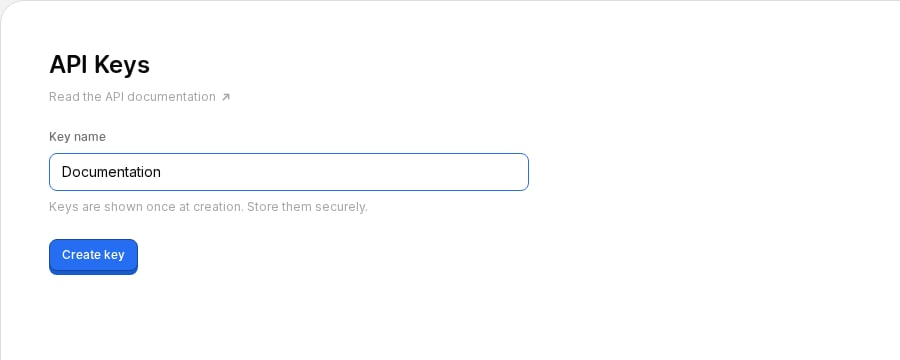 API keys are shown once at creation. If you lose it, revoke it and create a
new one.
### Option 2: Using the CLI
The [CLI](/en/cli/installation) handles authentication automatically:
```bash theme={null}
faces login
```
This opens your browser, signs you in, creates a key named "CLI", and saves it to `~/.config/faces/credentials.json`. Pass `--team ` to scope the key to a shared team instead of your personal team:
```bash theme={null}
faces login --team acme
```
## Using the key
Include the key as a Bearer token in every request:
```bash theme={null}
# With curl
curl https://faces.app/api/v1/projects \
-H "Authorization: Bearer faces_your_key_here"
# With the CLI (auto-detected from credentials file)
faces list
# Or pass explicitly
faces list --api-key faces_your_key_here
```
## Revoking keys
You can revoke keys from **Settings > Developers** in the dashboard. Revoking a key immediately and permanently invalidates it. Any integrations using that key will stop working.
## Security best practices
* **Never commit API keys** to version control
* Use environment variables to store keys:
```bash theme={null}
export FACES_API_KEY="faces_your_key_here"
```
* Create separate keys for each integration so you can revoke them independently
* Rotate keys periodically by creating a new one and revoking the old one
API keys are shown once at creation. If you lose it, revoke it and create a
new one.
### Option 2: Using the CLI
The [CLI](/en/cli/installation) handles authentication automatically:
```bash theme={null}
faces login
```
This opens your browser, signs you in, creates a key named "CLI", and saves it to `~/.config/faces/credentials.json`. Pass `--team ` to scope the key to a shared team instead of your personal team:
```bash theme={null}
faces login --team acme
```
## Using the key
Include the key as a Bearer token in every request:
```bash theme={null}
# With curl
curl https://faces.app/api/v1/projects \
-H "Authorization: Bearer faces_your_key_here"
# With the CLI (auto-detected from credentials file)
faces list
# Or pass explicitly
faces list --api-key faces_your_key_here
```
## Revoking keys
You can revoke keys from **Settings > Developers** in the dashboard. Revoking a key immediately and permanently invalidates it. Any integrations using that key will stop working.
## Security best practices
* **Never commit API keys** to version control
* Use environment variables to store keys:
```bash theme={null}
export FACES_API_KEY="faces_your_key_here"
```
* Create separate keys for each integration so you can revoke them independently
* Rotate keys periodically by creating a new one and revoking the old one